





Best Laser Engraving Software for Beginners: 4 Tools Compared (Free & Paid)

Choosing the right laser engraver software can make a big difference in your creative workflow. Whether you're engraving personalized gifts, creating crafts to sell, or running a small business, the right tools can help you turn digital designs into finished products with less trial and error.
But not all laser software works the same way. Some programs help you create and edit artwork, while others control your laser engraver and manage processing settings. Some combine both functions, while others are designed for specific machines or workflows.
In this guide, we'll compare four popular options for beginners: Falcon Design Space, LaserGRBL, Inkscape, and LightBurn. You'll learn which tools are free, what each one does best, and how to choose the right software for your machine, budget, and projects.
1. Falcon Design Space: Free Laser Engraving Software for Falcon Users
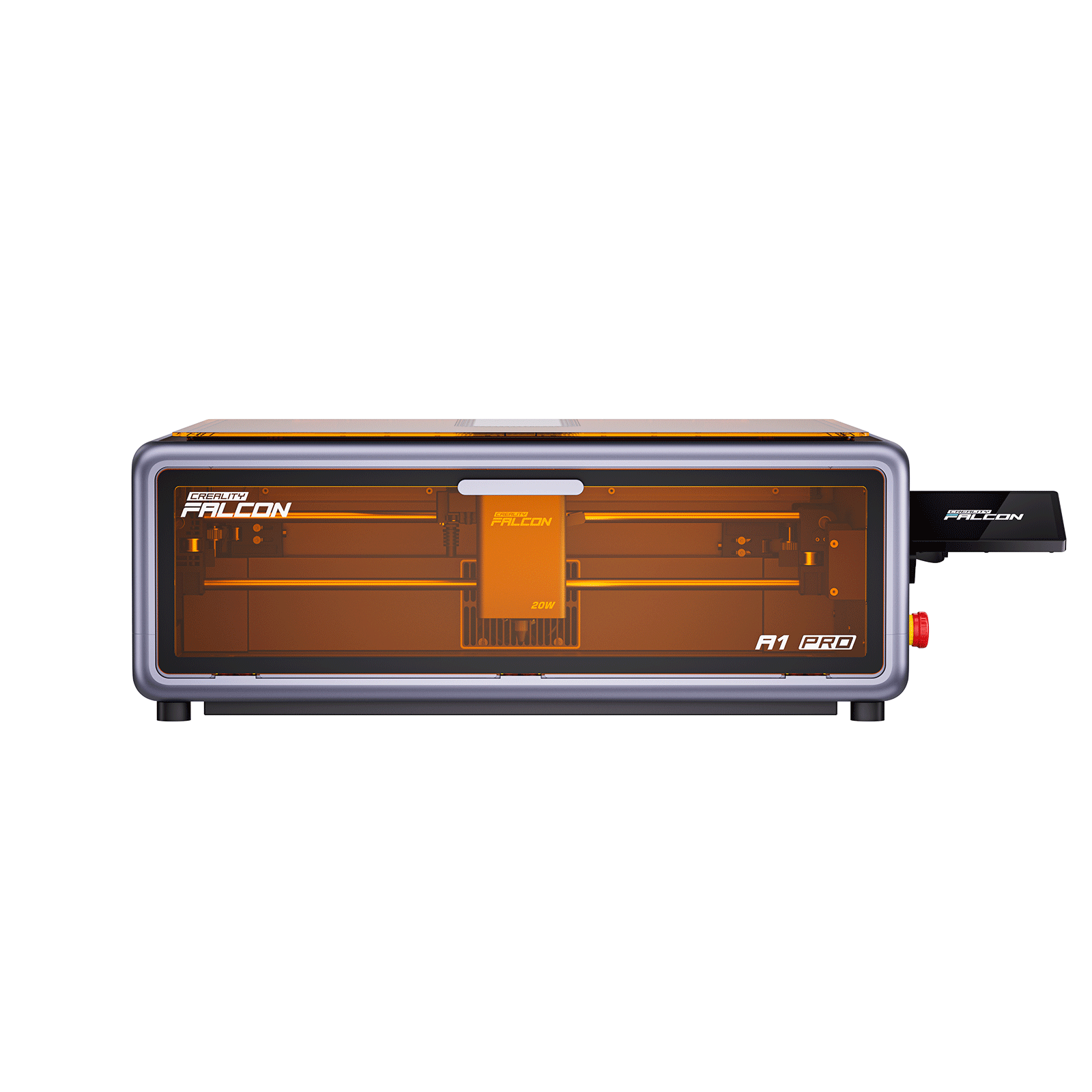
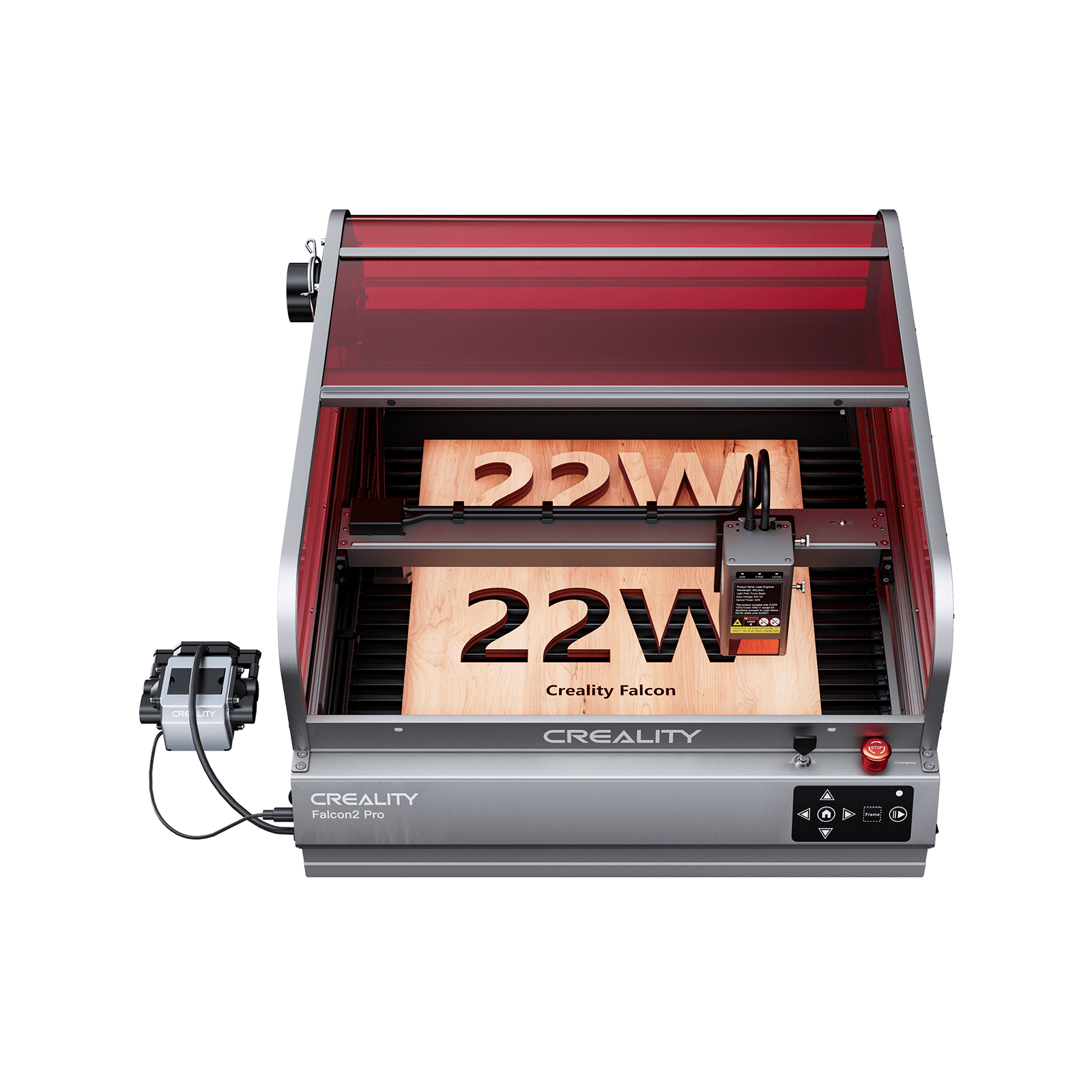
Looking for free laser engraving software for your Creality Falcon laser engraver? Start with Falcon Design Space, Creality Falcon’s design software for preparing and managing laser projects. Compatibility varies by model and configuration, including the Falcon A1C, T1, CR-Laser Falcon, Falcon Pro, Falcon2, and Falcon2 Pro.
Falcon Design Space is Creality Falcon's design and processing software for supported machines. It helps you prepare artwork, position designs, configure engraving jobs, and manage your workflow in one place.
For beginners, an integrated workflow can make getting started easier. Rather than learning several programs at once, you can focus on preparing your design, testing your settings, and developing your skills as your projects become more ambitious.
Another feature worth exploring is the Craftseek model library, which provides access to laser-ready project designs. Depending on the available models and supported workflow, users can browse projects and prepare them for engraving or cutting.
Key Features
-
AI-Powered Image Editing & Color Metal Engraving: Prepare images for engraving with AI-assisted background removal, image filters, and contour extraction, helping you achieve cleaner, more precise results.
-
Built-In Material Settings Library: Access a comprehensive library of material settings. Simply select your material to automatically populate recommended engraving parameters, making setup faster and easier.
-
Material Testing & Processing Tools: Use tools such as the Material Test Array to test multiple power and speed combinations, helping you fine-tune engraving settings for different materials.
-
Specialized Engraving Workflows: Explore features such as batch engraving, rotary engraving, and inner engraving, depending on your machine, compatible modules, and software version.

Best for: Compatible Falcon users who want an accessible workflow for preparing designs and running laser projects.
Get started: Download and set up Falcon Design Space.
2. LightBurn: Advanced Laser Design and Control Software
As your projects become more ambitious, you may want greater flexibility in how you design, arrange, and control your engraving jobs.
LightBurn is paid laser control software that combines design tools, layout controls, and machine operation features. It allows users to prepare artwork, arrange designs, and configure processing parameters for compatible machines.
Key Features
-
Create and edit designs within the application.
-
Import supported vector and image files.
-
Arrange artwork and manage engraving and cutting operations.
-
Adjust settings such as speed, power, passes, and processing order.
-
Control compatible laser machines directly from the software.

Best for: Makers, experienced hobbyists, and small businesses that need more control over their design and processing workflow.
Before you buy: Check compatibility with your specific machine and controller. LightBurn offers a 30-day trial, so you can test your setup before purchasing a license.
3. LaserGRBL: Free Laser Software for Compatible Machines
If keeping costs low is a priority, LaserGRBL is another option to consider.
LaserGRBL is free, open-source GRBL laser software designed for compatible GRBL-based machines. It focuses on machine control and engraving jobs rather than offering a complete suite of advanced design tools.
Key Features
-
Send engraving jobs to compatible GRBL-based machines.
-
Configure supported engraving parameters.
-
Work with supported image and vector formats.
-
Use basic machine-control functions to prepare and run jobs.

Best for: Budget-conscious users with compatible GRBL-based laser engravers who are comfortable learning the software.
Before you start: Check the current system requirements and confirm that your machine and controller are supported. LaserGRBL is not compatible with every laser engraver.
4. Inkscape: Free Laser Engraving Design Software
Not every project starts with a finished design. You might want to create a custom logo, draw precise shapes, or personalize a product with lettering before sending it to your laser.
Inkscape is free, open-source vector graphics software that helps you create and edit artwork, including SVG files commonly used in laser engraving and cutting workflows.
Key Features
-
Create logos, lettering, shapes, and patterns.
-
Edit vector paths for more precise designs.
-
Prepare scalable SVG artwork.
-
Export designs for use in compatible laser software.

Best for: Crafters, makers, and small-business owners who want more control over their artwork without paying for a graphics application.
Inkscape is primarily a design tool, not a replacement for laser engraving machine software that controls the hardware. You'll generally need a separate compatible application to configure and send your finished design to the machine.
Quick Comparison: Which Software Should You Choose?
|
Software |
Cost |
Primary Purpose |
Best For |
|
Falcon Design Space |
Free |
Design and laser processing |
Compatible Falcon users who want an integrated workflow |
|
LaserGRBL |
Free and open source |
Laser control |
Windows users with compatible GRBL-based machines |
|
Inkscape |
Free and open source |
Vector design and SVG file creation |
Makers who want more control over shapes, text, and artwork |
|
LightBurn |
Paid, with a 30-day trial |
Design, layout, and laser control |
Users who need advanced design and processing controls |
The right choice depends on your machine and the way you work. If you use a compatible Falcon machine, start with Falcon Design Space. If you need free laser cutter software for a compatible GRBL machine, consider LaserGRBL. For custom vector artwork, Inkscape is a useful design tool. If you want more advanced design and machine-control features, explore LightBurn.
How to Choose the Right Laser Engraving Software
The best laser cutter software isn't necessarily the one with the most features. It's the one that fits your machine, project requirements, and experience level.
1. Check Machine Compatibility
Before downloading or purchasing software, confirm that it supports your laser engraver, controller, operating system, and connection method. Compatibility should always come first.
2. Decide What You Need to Do
Do you mainly need to create artwork, control your machine, or both? Laser design software such as Inkscape helps you create and edit graphics, while laser-control applications prepare and run engraving jobs. An integrated tool can simplify the workflow.
3. Consider Your Budget
If you're new to laser engraving, start with a free option that supports your machine. Paid software may be worth the investment when its additional features solve a real problem or improve your workflow.
4. Match the Software to Your Projects
Simple text engraving, personalized gifts, and basic craft projects may require only a straightforward workflow. Detailed vector designs, repeated production jobs, and more complex processing tasks may benefit from advanced controls.
5. Choose a Workflow You Can Grow With
A beginner-friendly interface can help you get started quickly. More advanced tools may take longer to learn but provide greater flexibility as your skills develop. Choose the software that meets your current needs without making your workflow unnecessarily complicated.
How to Get Started with Laser Engraving
Start with a simple project, such as a wooden coaster or personalized name tag. With compatible software and a few basic checks, you can turn a digital design into a finished piece.
1. Prepare Your Design
Create your artwork or import a supported file, such as SVG, PNG, or JPG, using your laser engraving design software. Adjust the size and layout to fit your project.
2. Choose Your Material
Make sure your material is compatible with your laser engraver. Different materials require different settings, so follow the manufacturer's guidance and safety instructions.
3. Set Up Your Software
Import your design, check its position, and adjust settings such as speed and power. Use recommended material settings as a starting point rather than guessing. Find the recommended material settings for your Falcon laser.
4. Test and Engrave
Test your settings on scrap material first, when possible. Adjust them until you achieve the desired result, then engrave your final piece. Follow your machine's operating and ventilation instructions, and never leave a laser engraver running unattended.
Frequently Asked Questions
Q: What is the best laser engraving software for beginners?
A: The best option depends on your machine and projects. Falcon Design Space is worth considering for compatible Falcon users, LaserGRBL offers free control software for compatible GRBL-based machines, Inkscape helps you create vector artwork, and LightBurn provides more advanced design and control features.
Q: What is the best free laser engraver software?
A: There is no single best option for every machine. Falcon Design Space is designed for compatible Falcon users, LaserGRBL is free and open source for compatible GRBL-based machines, and Inkscape is useful for creating vector artwork. These tools serve different purposes, so check compatibility and functionality before choosing.
Q: Can I use laser cutter software with any laser engraver?
A: No. Compatibility depends on the machine, controller, operating system, and supported workflow. Check the manufacturer's documentation before downloading or purchasing software.
Q: Do I need separate laser engraving design software?
A: Not always. Some applications combine design and laser control. Others, such as Inkscape, focus on artwork creation and need to be paired with compatible laser-control software.
Q: What file formats can I use for laser engraving?
A: SVG is commonly used for vector designs, while PNG and JPG are commonly used for raster images. Other formats may be supported depending on the application. Check your software's documentation before preparing your design.
The End
The best laser engraving software depends on your machine, budget, and creative goals. Start with a tool that matches your current needs, then expand your workflow as your skills grow.
Learn More about Falcon Design Space: Falcon Design Space.
Recent News

How to Maintain and Clean Your Laser Engraver for Longevity
A laser engraver is an investment in your creativity and business.Like any precision machine, it requires regular care...

CO₂ vs Diode vs Fiber Laser: Key Differences Explained
Learn the key differences between CO₂, diode, and fiber lasers. Compare materials, power, costs, and find the best...

Best Materials for Laser Engraving and Cutting: A Complete Guide
Introduction: Why Material Choice MattersLaser engraving is one of the most versatile digital fabrication methods.From custom jewelry and...


